How to Send Bulk WhatsApp Messages from Excel Without Coding
Have an Excel spreadsheet full of contacts but don’t want to send WhatsApp messages one by one?
You can use a WhatsApp sender to turn that spreadsheet into a personalized messaging task without writing VBA code, generating individual WhatsApp links, or setting up an API.
With Rocket Sender, you prepare the task in a dedicated website workspace. Import your Excel contacts, personalize messages, add attachments, and configure sending intervals online. The Chrome extension then executes the task through your existing WhatsApp Web session.
The workflow: Excel contact list → Website workspace → Chrome extension → WhatsApp Web → Sending results.
This guide explains the complete process, common Excel import problems, and what happens to your task data after sending.
What You Need to Send WhatsApp Messages from Excel
Before starting, you’ll need an Excel contact list, Google Chrome, the Rocket Sender extension, and an active WhatsApp Web session.
Rocket Sender does not require a separate product account or WhatsApp Business API connection.
Here are its main capabilities and limits.
| Feature | Rocket Sender |
|---|---|
| Supported Excel files | .xls, .xlsx |
| Coding required | No VBA or scripting |
| Task preparation | Website workspace |
| Message execution | Chrome extension through WhatsApp Web |
| Personalization | Excel column-based variables |
| Attachments | Up to 5 files, 20 MB each in the current workspace |
| Sending controls | Custom intervals, pause, resume |
| Results | Successful, failed, and not-sent records |
| Task storage | Primarily local to the browser profile |
| Completed task retention | Default 30 days, maximum 50 tasks |
| Future-date scheduling | Not supported |
These capabilities reflect Rocket Sender’s published product information as of October 2026. WhatsApp account restrictions apply independently.
The main advantage is the separation between preparing a task on the website and executing it through WhatsApp Web.
Instead of managing every setting inside a small extension popup, you can review your contacts, messages, attachments, and intervals in a full-size website workspace.
How to Prepare Your Excel Contact List
A well-formatted spreadsheet is the starting point for reliable recipient mapping and personalization.
For example, suppose you’re sending a reference update to customers who have already agreed to receive WhatsApp notifications.
Your Excel file might look like this:
| Phone | Name | OrderID |
|---|---|---|
| 12025550101 | Alice | TEST-001 |
| 12025550102 | David | TEST-002 |
| 12025550103 | Emma | TEST-003 |
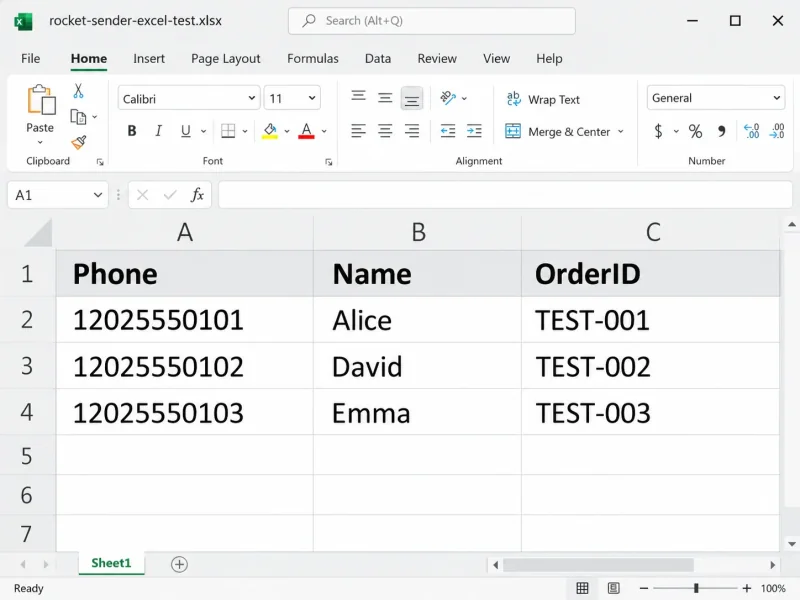
Example Excel contact list with phone numbers, names, and reference IDs. These are fictional numbers intended only for demonstration.
Each row represents one recipient, while each column contains information that can be used when preparing a message.
Excel Formatting Tips
Before importing the file, check the following:
-
Phone number format: Include the international country code and remove unnecessary spaces or punctuation.
-
Cell formatting: Set the phone number column to Text to prevent Excel from changing long numbers or removing leading zeros.
-
Column headers: Use clear labels such as
Phone,Name, andOrderID. -
Duplicate contacts: Review repeated phone numbers before sending.
-
Missing values: Make sure fields used for personalization contain the intended information.
For example, a blank OrderID cell may lead to an incomplete personalized message if you use that field in the template.
Rocket Sender accepts .xls and .xlsx files directly, so you don’t need to convert your Excel workbook to CSV before importing it.
How to Send Bulk WhatsApp Messages from Excel Using Rocket Sender
The process has three main stages: importing contacts into the website workspace, preparing the message and task settings, and sending through WhatsApp Web.
Import Excel Contacts into the Website Workspace
Open RocketSender.co in Chrome. Install the Rocket Sender Chrome extension if needed.
In the website workspace:
-
Select New task.
-
Give the task a recognizable name, such as
Customer Reference Updates. -
Click Import Excel under Recipients.
-
Select your
.xlsor.xlsxfile. -
Under WhatsApp number column, choose the column containing phone numbers.
-
Review the valid, invalid, and duplicate recipient counts.
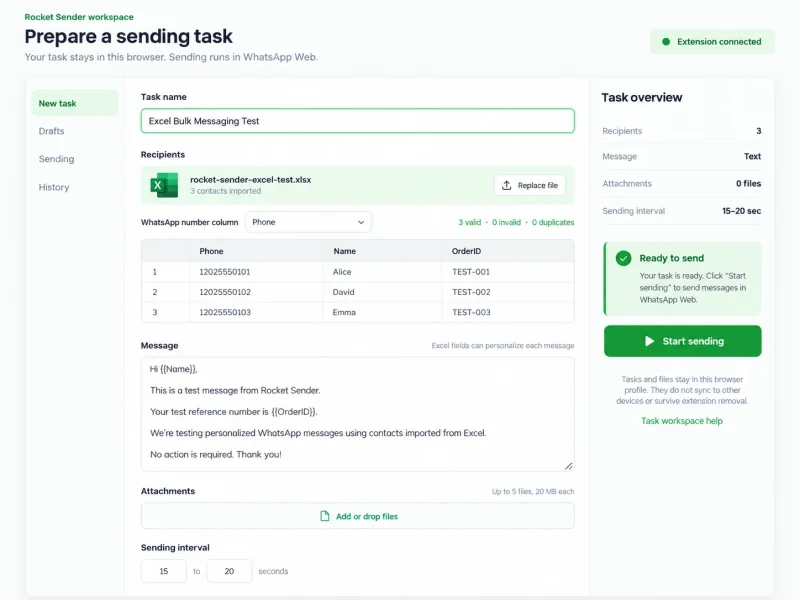
Illustrative website workspace showing Excel contacts, phone number mapping, and task settings.
An important detail is that uploading a spreadsheet does not automatically mean its recipients have been recognized.
For example, your file may appear in the workspace while the recipient count remains at zero because the phone number column has not yet been selected.
If your Excel header is Phone, select Phone in the corresponding dropdown.
Once recipient mapping is complete, review the validation counts before composing your message.
Personalize WhatsApp Messages with Excel Fields
After importing the contact list, use the Message area to prepare the content.
Rocket Sender supports personalization using Excel column data. Instead of writing a different message for every recipient, you can prepare one template that draws values from the relevant row.
Using the example spreadsheet, the intended messages would look like this:
Message for Alice
Hi Alice,Your reference number is TEST-001.This is a sample customer update. No action is required. Thank you!
Message for David
Hi David,Your reference number is TEST-002.This is a sample customer update. No action is required. Thank you!
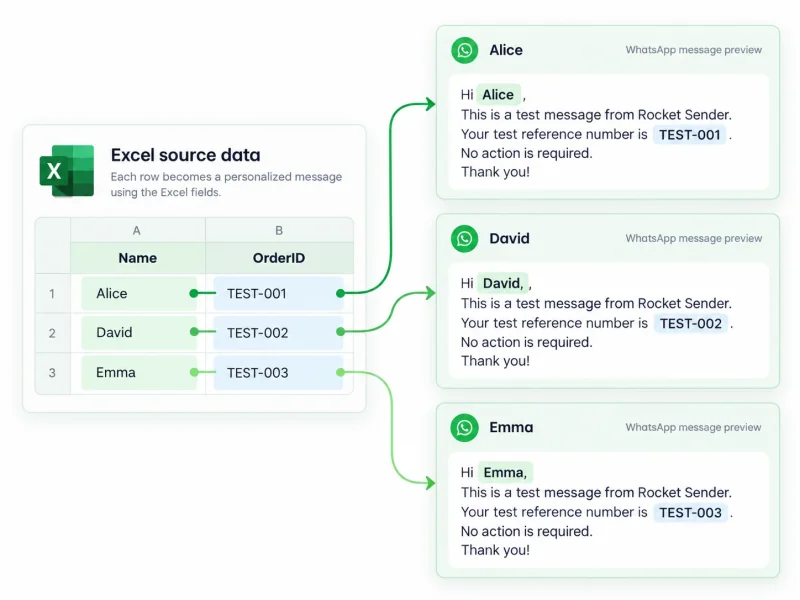
Illustration showing how the Name and OrderID fields can produce different messages for different contacts.
The message structure stays consistent while the recipient’s information changes.
In the Rocket Sender workspace, insert the relevant fields using the personalization syntax supported by the current product version. Match them to the corresponding Excel column headings.
Before starting a real task, check that the field references and spreadsheet values are correct.
Can you include attachments?
Yes. Rocket Sender supports images, videos, and document attachments. You can add up to five files per message through the website workspace.
The website workspace allows up to five attachments, with a displayed limit of 20 MB per file.
This can be useful for customer documents, appointment materials, or event information that recipients expect to receive.
Configure Your Sending Task Online
Once the contact list and message are ready, configure the sending task in the website workspace.
You can add attachments, choose a sending interval, and review the Task overview panel before starting.
For example, a demonstration task might use:
| Setting | Example |
|---|---|
| Task name | Customer Reference Updates |
| Recipients | 3 sample contacts |
| Message | Personalized reference update |
| Attachments | None |
| Sending interval | 15–20 seconds |
The Task overview brings the main settings together so you can review the recipient count, message, attachments, and interval without switching between multiple extension screens.
What does the sending interval do?
It controls the delay between sending actions in an active queue.
An interval does not guarantee protection from WhatsApp account restrictions, and it is not the same as scheduling a message for a particular future date.
Use the feature to manage task pacing, while following WhatsApp’s messaging policies and contacting only recipients who have agreed to receive your messages.
Send Messages Through WhatsApp Web
Once your task is prepared, the Chrome extension handles the sending process.
This is the key distinction in Rocket Sender’s workflow:
On the website: Prepare contacts, messages, attachments, and sending intervals.
In WhatsApp Web: Execute the prepared task through the Chrome extension using your authenticated WhatsApp account.
Open WhatsApp Web and make sure you’re signed in to the intended account.
After starting the prepared task, the extension provides controls for monitoring the queue.
These include:
-
Pause: Temporarily stop an active task.
-
Continue: Resume a paused task.
-
Export: Save the available task results.
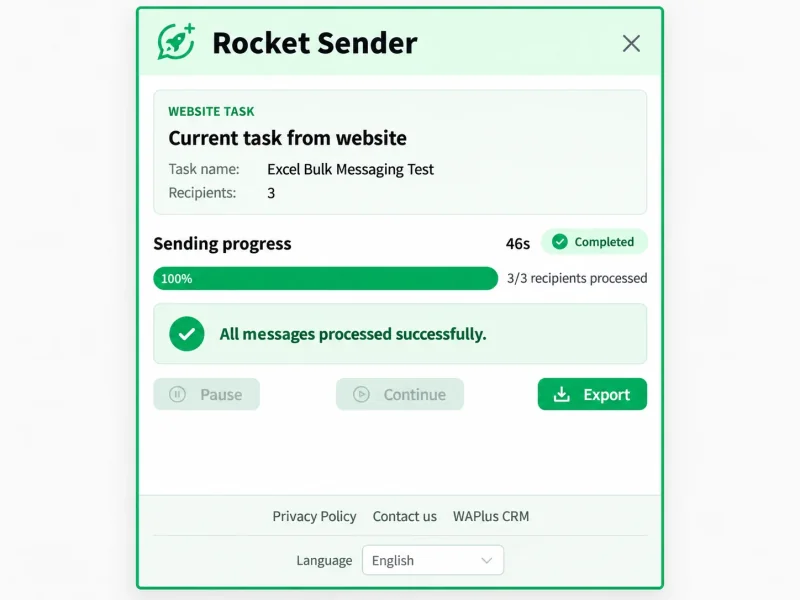
Illustrative Chrome extension showing a completed task. The displayed completion count is sample data, not a verified message-delivery result.
The extension’s progress indicator helps you understand how much of the task has been processed.
However, a completed sending task is not the same as confirmed delivery or reading by every recipient.
For delivery information, review the applicable WhatsApp message status rather than assuming the queue completion percentage proves receipt.
How to Check Sending Results and Export Your History
After sending, use Rocket Sender’s Sending and History areas to review the available task information.
The product distinguishes between successful, failed, and not-sent results and supports exporting task records.
These records can help you identify recipients who may need attention and avoid accidentally repeating a completed task.
Example: Sending Class Reminders to 150 Students from One Excel File
This is an illustrative scenario to show how the workflow scales beyond a three-row demo. It is not a customer case study.
Imagine a small language school that needs to tell 150 enrolled students about a schedule change next week. All students agreed to receive WhatsApp updates when they enrolled. The school’s spreadsheet contains these columns: Phone, Name, Course, ClassTime, and Room.
-
Clean the spreadsheet before importing. Set the Phone column to Text, confirm every number includes a country code, and use Excel’s Remove Duplicates feature on the Phone column. Filter for blank ClassTime or Room cells, since an empty value would leave a gap in the personalized message.
-
Import and map the phone column. Create a task named “Schedule Update,” import the .xlsx file, and select Phone under WhatsApp number column. Then check the validation counts. For example, if the workspace reports 146 valid, 2 invalid, and 2 duplicate recipients, open the file, fix the affected rows (usually a missing country code), and re-import before going further.
-
Write one template, personalize it with columns. Draft a single message that uses Name, Course, ClassTime, and Room, then attach an image of the updated schedule so recipients can easily review the changes.
-
Run a small test first. Before starting the full task, prepare a separate task with two or three rows, such as your own number and a colleague’s, and confirm the personalized fields appear correctly.
-
Set the interval and plan the time. With a 15–20 second interval, 150 recipients means roughly 38 to 50 minutes of queue time (150 × 15 s = 37.5 min; 150 × 20 s = 50 min), not counting any extra time for attachments. Keep Chrome and your WhatsApp Web session active throughout, and use Pause and Continue if you need to step away.
-
Review and export. When the task finishes, check the successful, failed, and not-sent records and export them. Follow up with failed or not-sent recipients separately, for example by preparing a new task containing only those rows. Remember that a completed queue does not prove delivery, so check WhatsApp’s own message status when it matters.
The takeaway: in a 150-person task, most problems come from the spreadsheet, not the sending step. Ten minutes of cleanup before import saves far more time than troubleshooting afterward.
Where Are Your Excel Contacts and Task Results Stored?
A website workspace does not necessarily mean your sending data is stored in a cloud dashboard.
According to Rocket Sender’s privacy policy, drafts, imported Excel rows, attachments, and recipient-level results are primarily stored in the installed extension’s local storage within the current browser profile.
The website accesses this task information through the extension rather than maintaining a separate website task database.
There are two useful retention limits to know:
| Local storage rule | Default limit |
|---|---|
| Completed task age | 30 days |
| Number of completed tasks | 50 |
These rules apply during local cleanup when the workspace reconnects.
Task history is not automatically synchronized between computers, and uninstalling the extension or clearing its storage can remove locally saved task information.
Practical recommendation: Export important results before deleting a task, reinstalling the extension, or clearing browser data.
Rocket Sender also processes certain product analytics and diagnostic information separately. For details, see its Privacy Policy.
Common Excel-to-WhatsApp Problems and How to Fix Them
Importing a contact list and connecting a Chrome extension are two different operations. If a task cannot start, identify which stage is failing before changing your file or reinstalling anything.
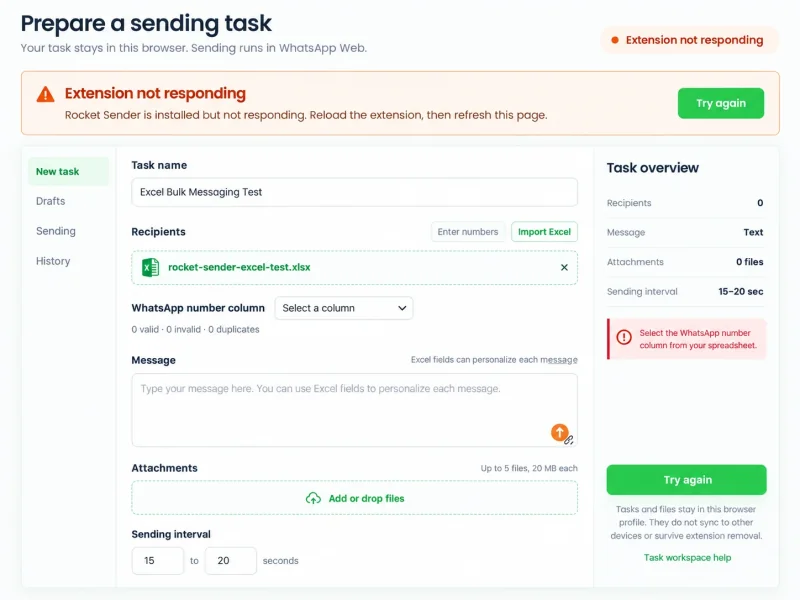
Example of the Rocket Sender workspace showing a missing phone number column selection and an extension connection warning.
| Problem | Possible cause | Recommended check |
|---|---|---|
| Excel uploaded, but 0 valid contacts | Phone number column not selected | Choose the correct column |
| Invalid phone numbers | Missing country code or incorrect Excel formatting | Check affected cells |
| Duplicate recipients | Repeated numbers in the spreadsheet | Review duplicate entries |
| Personalization values missing | Empty cells or mismatched field references | Check column headers and message variables |
| Extension not responding | Website cannot communicate with the extension | Reload the extension and refresh the page |
| Sending stops unexpectedly | Interrupted WhatsApp Web session or extension connection | Check connection and task state |
Why Does Rocket Sender Show 0 Valid Contacts?
If an Excel file is uploaded but the recipient count remains at zero, first check WhatsApp number column.
The workspace may recognize the file without yet knowing which column contains WhatsApp numbers.
Select the appropriate column, then check whether the validation counts update.
If some records remain invalid, review their phone number formatting.
How Do You Fix “Extension Not Responding”?
The Extension not responding message means the website cannot currently communicate with the installed Rocket Sender extension.
The interface recommends reloading the extension and refreshing the website.
After checking the connection, use Try again.
Also confirm that WhatsApp Web is available in the intended browser profile and that another similar extension is not interfering.
This is an extension connection problem, not necessarily a problem with the Excel file.
Why Are Excel Variables Not Appearing Correctly?
Check the Excel column headings and the personalization fields used in your message.
For example, if the spreadsheet uses OrderID, ensure the message references that column using the supported variable format.
Also check for blank or mismatched values in the source spreadsheet.
Other Ways to Send WhatsApp Messages from Excel
Rocket Sender is a no-code approach, but it is not the only option.
Depending on your needs, you can also use Excel HYPERLINK formulas, VBA automation, or the official WhatsApp Business Platform.
| Method | Main advantage | Main limitation |
|---|---|---|
| Excel HYPERLINK + wa.me | Simple and requires no extension | Usually requires opening chats and sending individually |
| Excel VBA | Allows custom scripting | Requires programming and ongoing maintenance |
| Website Workspace + Chrome Extension | No-code task preparation with Excel import | Requires Chrome extension and WhatsApp Web |
| WhatsApp Business Platform | Official API-based messaging and integration | Requires API setup and adherence to platform requirements |
Excel HYPERLINK works well when you’re contacting a small number of people. It can generate WhatsApp chat links with prefilled text, but opening a link does not automatically send the message.
Excel VBA can automate parts of a desktop workflow, including reading spreadsheet rows and interacting with WhatsApp. However, these scripts often require adjustments when application interfaces or file paths change.
WhatsApp Business Platform may be more suitable for organizations that need official API integration, approved templates, and larger-scale messaging operations.
Rocket Sender is a third-party WhatsApp Web tool, not an official WhatsApp Business Platform integration.
Choose the approach that fits your technical requirements, sending volume, and compliance needs.
Who Is Rocket Sender For, and Who Should Look Elsewhere?
Rocket Sender is a good fit for individuals, small teams, schools, event organizers, and small businesses that already keep their contacts in Excel and want to send personalized messages to people who have agreed to hear from them. It suits you if you’d rather avoid VBA or API setup, prefer reviewing contacts, messages, attachments, and intervals in a full-size workspace instead of a small popup, and are comfortable running the task through your own WhatsApp Web session in Chrome. According to its official website, it is also free to use without a subscription.
It is not the right tool for every situation. If you need to schedule messages for a specific future date or time, sync task history across devices or team members, trigger messages automatically from a CRM, or use approved templates through the official API, the WhatsApp Business Platform is a better match. The same applies to high-volume or compliance-heavy messaging. And as with any WhatsApp sender, it should not be used to contact people who haven’t opted in, because WhatsApp’s account restrictions and policies apply regardless of the tool you use.
Frequently Asked Questions
Can I send bulk WhatsApp messages from Excel without coding?
Yes. Rocket Sender lets you prepare Excel-based messaging tasks in its website workspace without writing VBA macros. The Chrome extension then executes the task through WhatsApp Web.
Do I need to convert Excel to CSV?
No. Rocket Sender supports .xls and .xlsx files directly. After importing, select the correct WhatsApp phone number column.
Is Rocket Sender a free WhatsApp sender?
According to its official website, Rocket Sender is free to use without a subscription or a fixed product message limit. WhatsApp account restrictions and messaging policies still apply.
Can I send attachments with personalized messages?
Yes. Rocket Sender supports Excel-based personalization and optional attachments, including images, videos, and documents. The current workspace permits up to five files, with a displayed limit of 20 MB per file.
Can I schedule bulk WhatsApp messages for tomorrow?
Rocket Sender supports intervals between messages in an active queue, but does not currently schedule tasks for a specific future date or time.
Does Rocket Sender save my Excel contact list online?
The task data is primarily stored in the extension’s local storage within your browser profile. It is not automatically synchronized through a separate cloud task database. Certain analytics and diagnostic data may be processed separately, as described in the privacy policy.
Start Sending WhatsApp Messages from Excel
You don’t need to write Excel macros or manually open a new chat for every contact to prepare a WhatsApp bulk messaging task.
With Rocket Sender, the process is straightforward: import your Excel contacts, map the phone number column, personalize your messages, and configure the sending task in a website workspace.
The Chrome extension then executes the prepared task through WhatsApp Web, while sending progress and available results help you review what happened.
For users who prefer organizing messaging tasks on a full website rather than entirely inside an extension popup, Rocket Sender provides a practical no-code workflow.
Open Rocket Sender to prepare your Excel-based WhatsApp messaging task.